Best CS2 (CS:GO) Resolution and Aspect Ratio in 2026
The best CS2 resolution and aspect ratio in 2026: 4:3 stretched vs 16:9, what pros use, and how to set up stretched or black bars.
Counter-Strike has been around since 1999, and CS2 replaced CS:GO in September 2023. One debate came along unchanged: which resolution and aspect ratio should you play on?
Resolution is the number of pixels displayed horizontally and vertically on the screen, written as width x height (e.g., 1920x1080). Aspect ratio is the proportion between the width and the height (such as 16:9 or 4:3). Both matter in CS2. A higher resolution gives you a sharper image. A different aspect ratio changes how much of the map you see and how big the player models look.
Choosing the right CS2 resolution and aspect ratio affects both performance and the player experience. A higher resolution makes distant enemies sharper, but it costs FPS. A lower resolution increases your frame rate, but the image gets blurrier. CS2 is a heavier game than CS:GO was, so this trade-off matters more on older PCs than it used to.
The aspect ratio plays an important role too. A wide 16:9 image shows you more of the map on the sides. A 4:3 image stretched across a 16:9 monitor shows less, but makes the player models look wider and easier to hit.
This article explains how to choose the best resolution for CS2, what the pros use in 2026, and how to set up native, stretched and black bars in the game.
Choosing The Best Resolution For CS2
These are the most common resolutions in CS2:
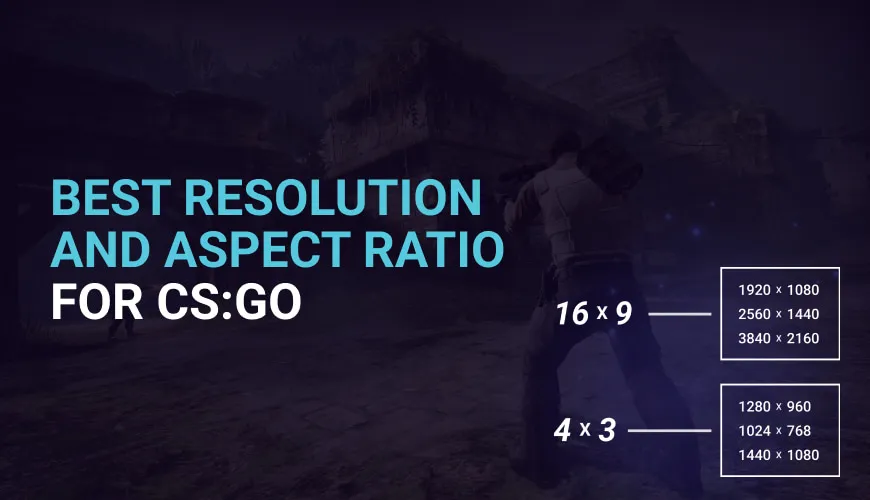
- 1920x1080 (16:9). The native resolution of most gaming monitors. It gives a sharp image and the widest view. It's the most common choice among regular players;
- 1280x960 (4:3). The classic competitive resolution and by far the most popular among pros. Usually played stretched, it makes models look wider and runs well even on modest hardware;
- 1024x768 (4:3). An even lower 4:3 resolution. It gives more FPS, but the image is noticeably blurrier, especially on large monitors;
- 1440x1080 (4:3). A sharper 4:3 option. It keeps the full height of a 1080p monitor, so the image is cleaner than 1280x960, but it costs more performance;
- 2560x1440 (16:9). A higher resolution for 1440p monitors and powerful graphics cards. It gives a very sharp image but lowers your frame rate;
- 3840x2160 (16:9). 4K. It looks great but needs a very powerful graphics card to keep a high, stable frame rate in CS2.
The right resolution depends on your monitor, your hardware and your preferences.
Factors To Consider When Choosing A Resolution For CS2
- Hardware capabilities. Your graphics card decides which resolutions you can run at a high, stable frame rate. In CS2, a steady frame rate matters more than a slightly sharper image;
- Field of view. 16:9 shows you more of the map on the left and right. With 4:3, the sides of the image are cut off;
- Model size. With 4:3 stretched, everything is stretched sideways, so enemies look wider. Many players find them easier to hit;
- Monitor. A low resolution on a big monitor looks blurry. Your monitor's native resolution always gives the sharpest picture;
- Habit. Many players who switched from CS:GO kept the resolution they were used to. Muscle memory is a real factor;
- Performance. A lower resolution means more FPS, which matters most on older PCs.
Resolution Recommendations For Different Types Of Players
- Competitive players. Most pros play 4:3, usually 1280x960 stretched. Others stay on native 1920x1080 for the wider view. Both are fine, so try both and pick the one you aim better with;
- Casual players. If you mostly play for fun, use your monitor's native resolution. It looks the best;
- Players with low-end hardware. Try 1280x960 or 1024x768. Lower resolutions give a big FPS boost in CS2;
- Players with high-end hardware. You can play at 2560x1440 or higher and still keep a high frame rate. Just make sure the frame rate stays stable in busy fights with smokes and molotovs;
- Streamers. Your viewers see your game resolution. Many streamers play at native 16:9 because the stream looks cleaner, but plenty of streamers play stretched too.
What Resolution Do CS2 Pros Use?
According to prosettings.net's CS2 settings guide (updated September 2026, based on more than 900 pro players), the most used resolutions are:
- 1280x960: 53%;
- 1024x768: 15%;
- 1920x1080: 13%;
- 1280x1024: 6%;
- 1152x864: 5%.
In other words, 4:3 is still the pro standard in CS2. For example, the prosettings.net player list shows donk, apEX and sh1ro on 1280x960 stretched, ZywOo on 1024x768 stretched, and ropz on native 1920x1080 (checked October 2026).
4:3 vs 16:9 In CS2
The choice between 4:3 and 16:9 has a real effect on how the game looks and feels.
A 4:3 aspect ratio cuts off the sides of the image. When you stretch it to fill a 16:9 monitor, everything gets wider, including the enemy models. This is why many players feel they hit their shots more easily. It also hides some of the clutter on the sides of the screen.
A 16:9 aspect ratio shows the whole image. You can see more of the map, so you spot enemies on the sides earlier. Player models look narrower, but the image is sharper and more natural.
The choice depends on your preference. Some players value the wider view, others value bigger targets.
Stretched, Black Bars Or Native?
If you choose a 4:3 resolution on a 16:9 monitor, there are two ways to display it:
- Stretched. The image fills the whole screen and everything is stretched sideways. This is what most pros use;
- Black bars. The image keeps its real proportions, with black bars on the left and right. Nothing is distorted, but the playing area is smaller.
If you play at your monitor's own aspect ratio (for example 16:9 on a 16:9 monitor), that's called native.
Setting Up The Resolution And Aspect Ratio In CS2
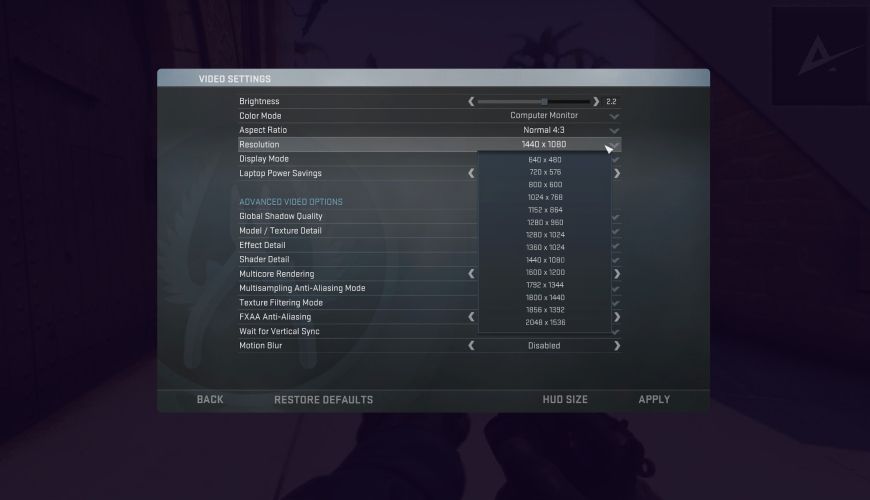
Here is a step-by-step guide to setting up the resolution and aspect ratio in CS2:
Step 1: Start CS2
Launch Counter-Strike 2 from your Steam library.
Step 2: Open the video settings
Click the gear icon in the main menu, then open the "Video" tab.
Step 3: Choose your aspect ratio
Set "Aspect Ratio" to the one you want: 4:3, 16:9 or 16:10. The list of resolutions changes to match.
Step 4: Select a resolution
Pick a resolution from the list, for example 1280x960 for 4:3 or 1920x1080 for 16:9.
Step 5: Set the display mode
Set "Display Mode" to "Fullscreen". For a stretched 4:3 image, you need fullscreen mode. In windowed or fullscreen windowed mode, the game won't stretch.
Step 6: Set up stretching in your graphics driver
To get a stretched image, set up scaling in your graphics driver:
- NVIDIA: open the NVIDIA Control Panel, go to "Adjust desktop size and position", choose "Full-screen" as the scaling mode, and check "Override the scaling mode set by games and programs". Choose "Aspect ratio" instead if you want black bars;
- AMD: open AMD Software (Adrenalin Edition), go to the display settings, enable "GPU Scaling" and set the scaling mode to "Full panel" for stretched or "Preserve aspect ratio" for black bars.
Step 7: Apply the changes
Apply the settings in the game. The screen may flicker while the resolution changes.
Step 8: Test and adjust if necessary
Play a few rounds in a practice match. Check that the image looks the way you want and that your FPS is stable. If not, go back and change it.
If CS2 ever opens at a resolution your monitor can't display, you can force a resolution with the -w and -h launch options, for example -w 1920 -h 1080. Our CS2 launch options guide explains how.
Setting the resolution and aspect ratio in CS2 is simple, but there are a few common problems you may run into:
- Black bars instead of stretched. Check that the game is in fullscreen mode and that your graphics driver's scaling mode is set to full-screen / full panel, with the override option enabled;
- Blurry graphics. Lower resolutions always look softer than native. If it bothers you, try a higher 4:3 resolution like 1440x1080, or go back to native;
- Frame rate drops. Lower the resolution or the most demanding video settings, such as shadows and anti-aliasing;
- Mouse feels different. Your sensitivity doesn't change when you change resolution, but stretched 4:3 makes horizontal movement look faster. Give yourself a few days to get used to it before changing your mouse sensitivity;
- Display driver problems. Outdated drivers can cause scaling issues. Make sure your graphics drivers are up to date.
Conclusion
The best resolution and aspect ratio for CS2 depends on your hardware, your style of play and what you're used to. Most pros still play 1280x960 stretched, but plenty of top players use native 1920x1080. Players should consider:
- Hardware capabilities;
- Game style;
- Personal preferences.
Try both 4:3 stretched and 16:9 native for a while, follow the setup steps above, and keep the one you aim best with. Taking the time to get this right can make a real difference to your game.
FAQ
What is the difference between Resolution and Aspect Ratio?
Resolution is the number of pixels on the screen, written as width x height (for example, 1920x1080). Aspect ratio is the proportion between the width and the height, written as a ratio (e.g., 16:9).
What Resolution and Aspect Ratio do professional CS2 players use?
Most pros play 4:3. According to prosettings.net's CS2 guide (September 2026), 1280x960 is the most used resolution at 53%, followed by 1024x768 and 1920x1080. Most of the 4:3 players stretch the image to fill their 16:9 monitor.
Is 4:3 stretched better than 16:9 in CS2?
Neither is better for everyone. 4:3 stretched makes enemies look wider, and 16:9 lets you see more of the map. It comes down to preference.
Why won't CS2 stretch my 4:3 resolution?
Make sure the game is in fullscreen mode, not windowed or fullscreen windowed. Then set your graphics driver's scaling mode to full-screen (NVIDIA) or full panel (AMD).
How does Resolution affect FPS in CS2?
The higher the resolution, the more pixels your graphics card has to draw, and the lower your FPS. For example, 1920x1080 has about 70% more pixels than 1280x960. How much that costs depends on your hardware.
Can I change the Resolution and Aspect Ratio mid-game in CS2?
Yes. Open the settings, change the resolution or aspect ratio in the Video tab and apply it. The screen may flicker for a moment while it switches.
Related posts
CS2 (CS:GO) Jump Throw Bind in 2026: Banned? What Works
Jump throw binds stopped working in CS2 in August 2024. How to jump throw by hand in 2026, set up a scroll-wheel jump, and practice lineups.
CS2 (CS:GO) Anime Stickers: Best Picks for 2026
The best CS2 anime stickers in 2026, from Kawaii Killer T and CT to Water Gun, plus how anime stickers affect skin trading and value.
CS2 (CS:GO) Player Count in 2026: Popularity & Stats
How many people play CS2? Player counts as of October 2026 from Steam Charts, monthly trends since 2023, and what keeps Counter-Strike on top of Steam.